

Risk page
A risk profile decides how Prefactor scores the runs of the agents assigned to it: how much each data category weighs, how much each action multiplies that weight, and which scores count as Medium, High, or Critical. You’ll come to the Risk page to create a profile, or to open an existing one and tune it.
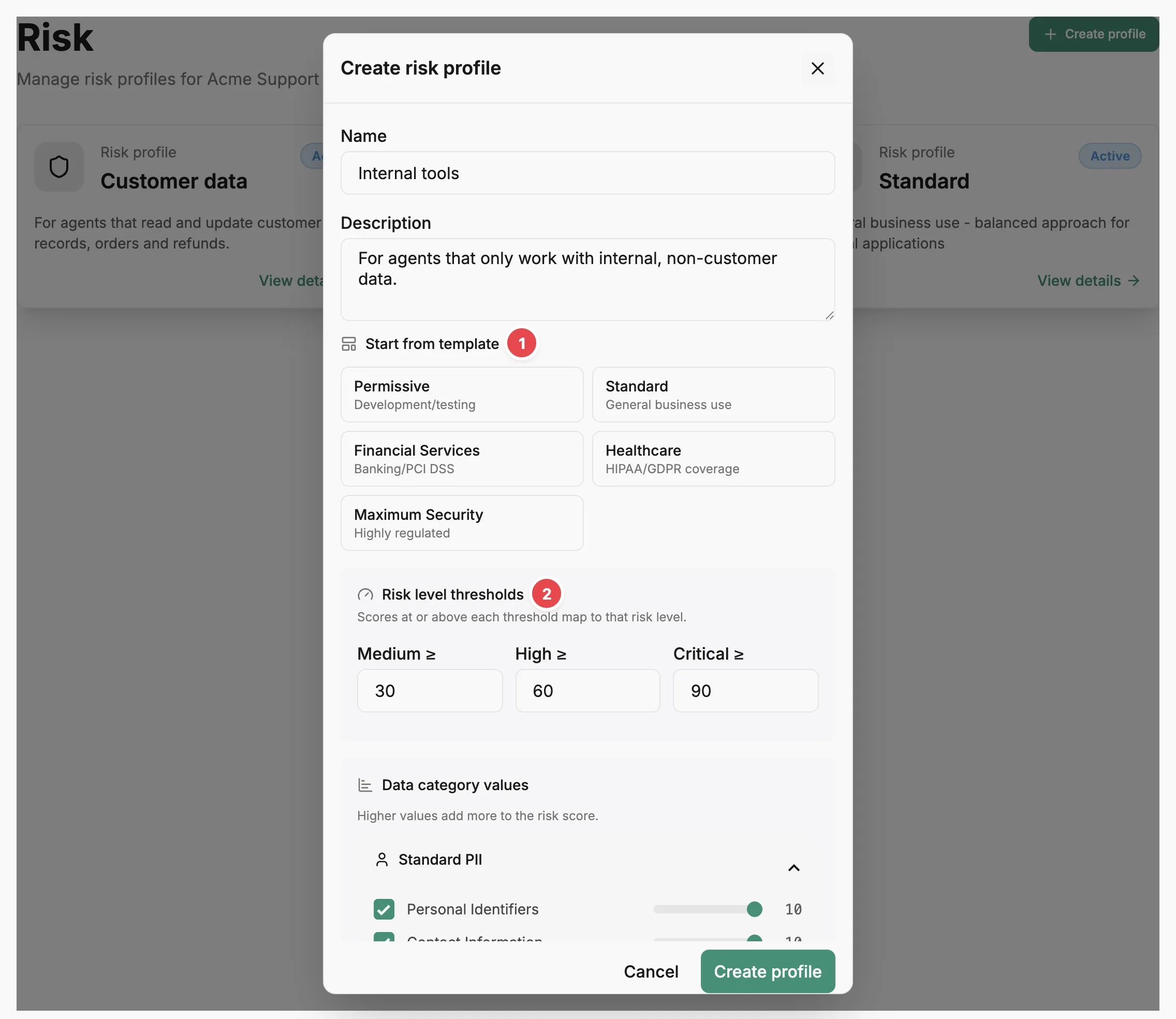
- Start from template - fills the scoring fields from a preset.
- Risk level thresholds - the scores at which runs become Medium, High, or Critical.
Profiles list
Section titled “Profiles list”Each profile appears as a card with its name, description, and an Active badge. View details opens the profile. Create profile at the top right opens the Create risk profile dialog.
Create risk profile
Section titled “Create risk profile”The dialog’s fields, in order:
- Name (required) and Description.
- Start from template (optional) — Permissive, Standard, Financial Services, Healthcare, or Maximum Security. Choosing a template replaces every scoring field below with the template’s values; the name and description stay as you typed them. You can still adjust any value afterwards.
- Risk level thresholds — Medium ≥, High ≥, and Critical ≥. Each is a whole number from 1 to 999, and the defaults are 25, 50, and 75. A run scoring at or above a threshold gets that level; anything below Medium is Low.
- Data category values — a weight from 0 to 10 for each category, grouped under Standard PII, Sensitive data, and GDPR Article 9 Special Categories. Higher values add more to the risk score. Each category also has a checkbox: clear it to leave the category out of the profile whatever its weight. A category that stays included with a weight of 0 is still part of the agreed scope but adds nothing to scores.
- Action risk multipliers (advanced) — collapsed by default. A multiplier from 1.0 to 5.0, in steps of 0.5, for each of Destroy Data, Financial Transactions, External Communication, Create Data, Update Data, and Read Data. 1.0 leaves the category weight unchanged; higher values increase it. Clear an action’s checkbox to disallow that action under the profile.
Create profile saves the profile and closes the dialog. The new profile appears in the list.
Profile detail
Section titled “Profile detail”A profile’s page shows its configuration in the order below, with Edit and an action menu at the top right.
Score thresholds
Section titled “Score thresholds”A bar shows the score range for each of the four levels. The three thresholds divide scores into Low (from 0 up to the Medium threshold), Medium, High, and Critical (the Critical threshold and above). If the thresholds aren’t positive and strictly ascending, the section shows an error instead; fix the values under Edit.
Agreed risk
Section titled “Agreed risk”Agents using the profile are agreed to operate within this scope. Allowed actions lists all six actions, with the ones the profile disallows greyed out. Included data categories lists the categories included in the profile, including those with a weight of 0. Prefactor compares each agent’s declared capabilities against this scope and flags anything that goes beyond it on the Agent page › Overview tab.
Category scores
Section titled “Category scores”The categories that add to the score, with their weights, grouped under Standard PII, Sensitive data, and GDPR Special Categories (Article 9). Categories with a weight of 0 are left out here; they still appear under Agreed risk if they’re included.
Action multipliers
Section titled “Action multipliers”The multiplier for each allowed action. Disallowed actions are not listed.
Agents using this profile
Section titled “Agents using this profile”The agents assigned to the profile. Each one opens its Agent page.
Actions
Section titled “Actions”Edit a profile
Section titled “Edit a profile”Edit opens the Edit risk profile dialog with the same fields as the create dialog, except that the name field is labelled Profile name and there’s no Start from template: templates only apply when you create a profile. Save changes applies the new configuration.
Delete a profile
Section titled “Delete a profile”Delete profile is in the action menu, and asks you to confirm. Deleting soft-deletes the profile: agents that used it keep the association for history. After you confirm, you return to the profiles list.
Related
Section titled “Related”- Risk profile — how category weights, multipliers, and thresholds combine into a risk level.
- Create a risk profile — set up a profile step by step.
- Assign a risk profile — choose the profile an agent is scored against.
- Agents page — choose a profile when you register an agent.