

Web app overview
The web app is where you operate Prefactor. You come here to see how your agents are doing, inspect what they did on a run, set up judges to score their work, give them reference documents, and decide how their risk is scored. Agents send their data through the SDKs; the web app is where you read it and manage everything around it.
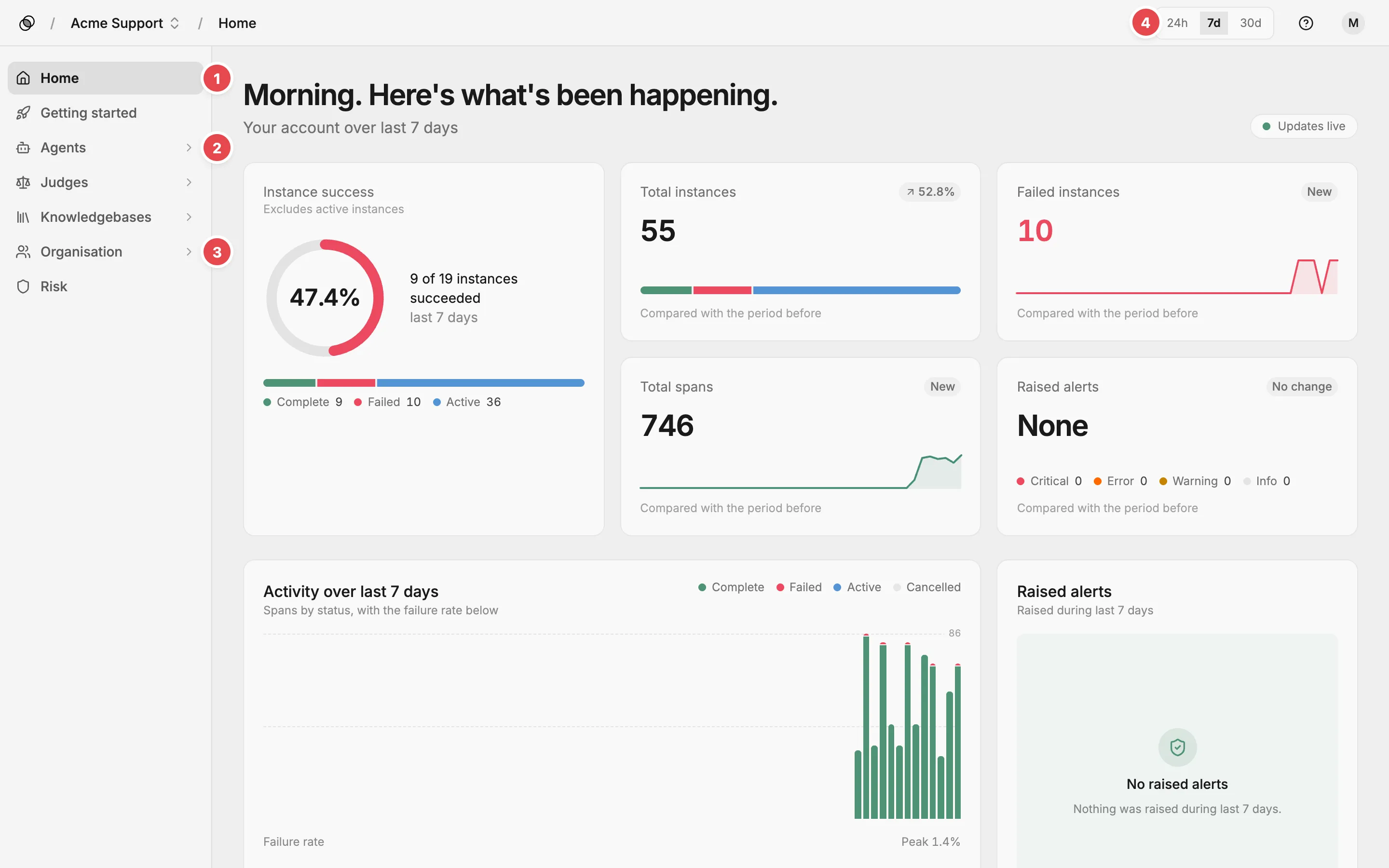
- Home - how your agents did over the selected period.
- Agents - every standard agent in your account.
- Organisation - your teams and the people who own your agents.
- Time range picker - sets the period for charts and counts.
The sidebar
Section titled “The sidebar”The sidebar lists the areas of the app in this order:
- Home — how your agents did over the selected period, and which ones need attention.
- Getting started — sets up your first agent in three steps: install the CLI, sign in, and copy a setup prompt into your coding tool. The prompt registers a new agent or instruments one you already have.
- Agents — every standard agent in your account. Open one for its Agent page, and from there any run on the Agent instance page.
- Judges — the agents that score other agents’ runs. Each has its own Judge page.
- Knowledgebases — sets of documents your agents and judges can read. Each has its own Knowledgebase page.
- Organisation — Teams and People, which group your agents and record who owns them.
- Risk — the risk profiles that decide how your agents’ runs are scored.
When you’re in Agents, Judges, or Knowledgebases, its sidebar item expands to list every item in it, so you can jump straight to one. Agents and judges without a team come first, then each team under its own heading. A team heading opens the list filtered to that team.
The top bar
Section titled “The top bar”The account switcher shows which account you’re in and lets you move to another account you belong to. Manage opens the full list of your accounts.
The time range picker sets the period to 24h, 7d, or 30d. It drives the charts and counts on Home, the Agents and Judges pages, and the Overview and Metrics tabs of an agent or judge, and it stays set as you move between screens. It’s hidden on an agent instance, a knowledgebase, and the other Agent page tabs. Other screens show it, but it doesn’t change what they display.
The help menu links to this documentation and to the API reference. The user menu holds Account settings, where you manage the account: its details, admin users, invites, API tokens, environments, LLM providers, integrations, and billing. The theme switcher and Sign out are in the user menu too.
Related
Section titled “Related”- Prefactor platform — what Prefactor is and how the platform is structured.
- Agent — what an agent is, how versions are created, and the agent lifecycle.
- Evals — how judges score runs and where their verdicts appear.
- Knowledgebase — what a knowledgebase is and how agents and judges read it.
- Risk profile — how category weights and thresholds combine into a risk level.
- Account — what an account is and how it relates to agents, environments, and tokens.