

Judge page
A judge scores runs of other agents. You’ll come to the Judge page to give a judge its first version, choose which agents it scores and when, and look back at what it has done. Select a judge from the Judges page to open it.
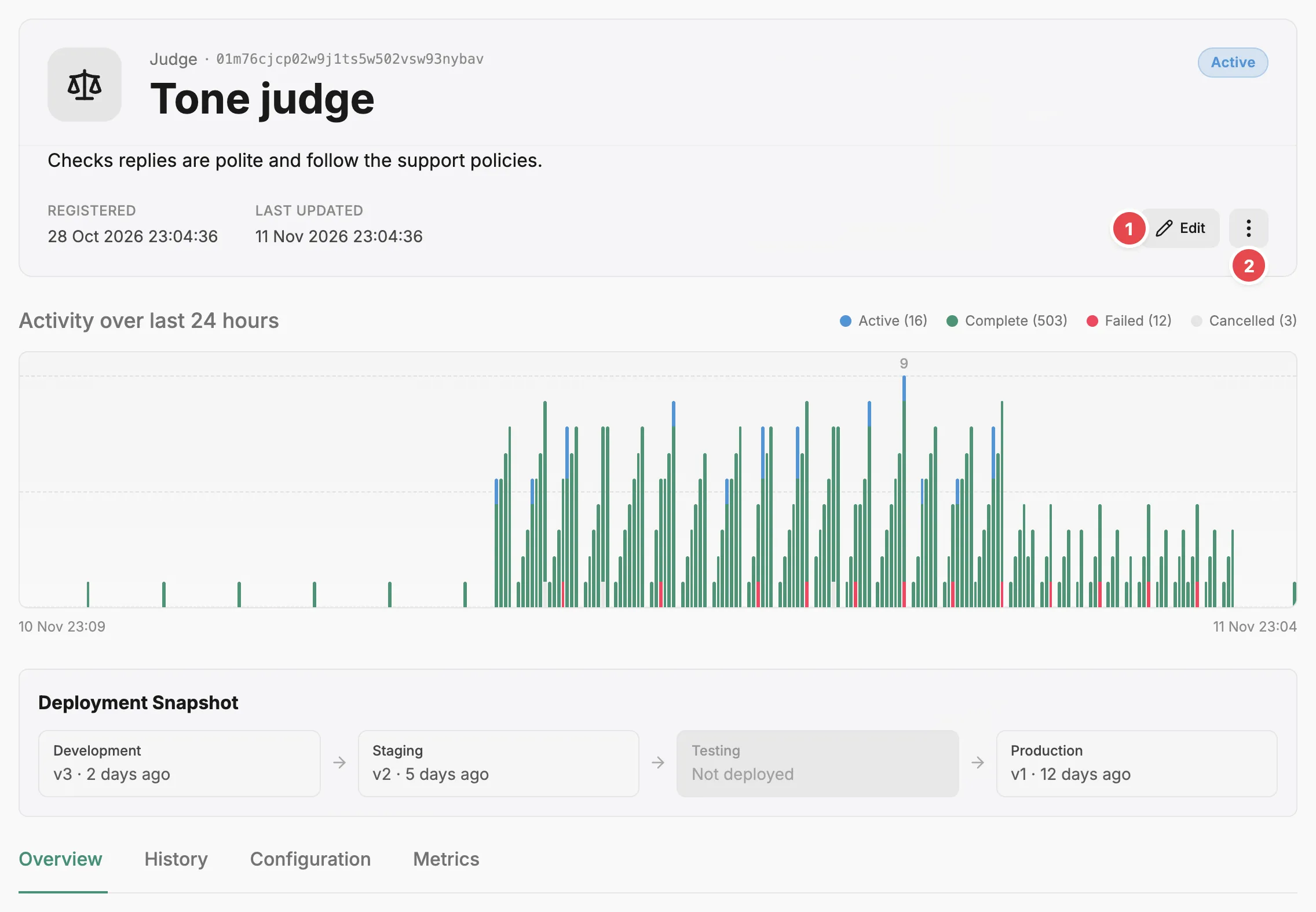
- Edit - changes the judge’s name, description, team, and owner.
- Action menu - retires, reinstates, or deletes the judge.
Header
Section titled “Header”Edit changes the judge’s name, description, team, and owner. The action menu holds Retire judge, Reinstate judge, and Delete judge. A retired judge takes no new runs; Prefactor only retires a judge whose runs have all finished.
Above the tabs, the Deployment Snapshot shows which version of the judge is deployed in each environment. On a hosted judge, Promote appears under an environment’s version when the next environment up has an older version or none, and deploys it there after you confirm. A judge takes no risk profile and has no Activity schema tab. Only a remote judge has a Deployments tab, for the deployment tokens its own code uses, and a Setup judge item in the action menu that opens the getting started page.
What you can do here
Section titled “What you can do here”- Set up the judge with a criterion and a model, and update it later.
- Choose which agents the judge scores, and whether it runs on demand or on completion.
- Promote a version to the next environment.
- Read the judge’s runs and see which run each one scored.
- Check how the judge’s own runs perform.
Each of these has a CLI command and an API operation. Set up a judge from the CLI lists them next to the controls on this page.
Overview tab
Section titled “Overview tab”The Overview tab holds the agents the judge scores, the knowledgebases it can read, and a summary of its recent work. Environment, at the top, picks the environment the instance counts come from, the same way as on the Agent page › Overview tab.
The Judging box lists the agents whose runs this judge scores, each with its trigger: On demand or On completion. Evals explains the difference. Add agent, in the box’s action menu, opens a dialog where you choose an agent and a trigger. It is unavailable when no agents are registered or every agent is already attached. A row’s action menu has Remove, which asks you to confirm before the judge stops scoring that agent.
The Knowledgebases box lists the knowledgebases the judge can read, with Link knowledgebase and Unlink working as they do on the Agent page › Overview tab. Manage a knowledgebase’s documents on its Knowledgebase page. If a judge has a risk profile assigned, the tab also shows a Risk summary. Edit can clear that profile but cannot assign one.
The Instances box counts the judge’s own runs by state, using the same states as the Agent page › Overview tab. Recent activity lists the five most recent judge runs, each with a link to the run it scored, its status, and its time, and View instance opens the judge run itself.
Configuration tab
Section titled “Configuration tab”A hosted judge’s configuration is its list of versions. Pick a version from the Version dropdown to see the environments it is deployed in, its model, the tools it can use, the runtime environment it reported, and when it was registered, followed by its criterion, its system prompt template, and the recent runs on that version.
A new judge has no versions, so the tab shows Create judge, which opens the Set up the judge dialog. Once the judge has a version, the button reads Update judge and opens the Update judge dialog. Both have these fields:
- A template picker: Write your own, or one of the built-in criteria (Completeness, Correctness, Hallucination, Refusal, Tool invocation, Tool response handling, PII detection, and Toxicity), each with a one-line description. Choosing a template fills in the criterion.
- Criterion — what the judge looks for.
- Model — one of the models from your LLM providers, grouped by provider. The dialog asks you to add a provider and a model first when you have none.
- Version identifier — defaults to the current date and time.
- Use a custom system prompt template — reveals System prompt template. The only variable is
{{ criterion }}.
Update judge starts the dialog pre-filled from the selected version, and Start from a template brings the template picker back. Submitting saves a new version and deploys it to your lowest environment. If the judge already has a version with the same identifier, template, criterion, and model, Prefactor reuses it.
Existing versions never change. To change the criterion, template, or model, update the judge, which creates a new version.
History tab
Section titled “History tab”Each row is one run of the judge, including runs still in progress. The columns are Time, Status, Instance ID, Environment, Version, and Alerts, with View to open the run. Under the instance ID, a “Judging” line names the agent and run that judge run scored and links to it.
Metrics tab
Section titled “Metrics tab”Run health for the judge over the time range you choose, with the same figures as the Agent page › Metrics tab.
Related
Section titled “Related”- Evals — the model behind judges, triggers, and judge runs.
- LLM provider — the models a hosted judge runs on.
- Judges page — the list of judges.
- Set up a judge from the CLI — the same setup from the command line, including remote judges.
- Agent page › Overview tab — where an agent’s own judges are added.
- Agent › Instance › Quality tab — each judge’s verdict on a single run.