

Deployments tab
A deployment token is an API token scoped to one agent in one environment, with the agent’s identity built in, so SDK calls made with it don’t need to name the agent. You’ll come to the Deployments tab to create the token for a new environment, or to change, suspend, or revoke one that is already in use. The tab appears only for agents that run your own code and report to Prefactor through the SDK.
Which version is deployed in each environment is shown in the deployment snapshot on the Agent page, not here. See agent deployment for how those records work.
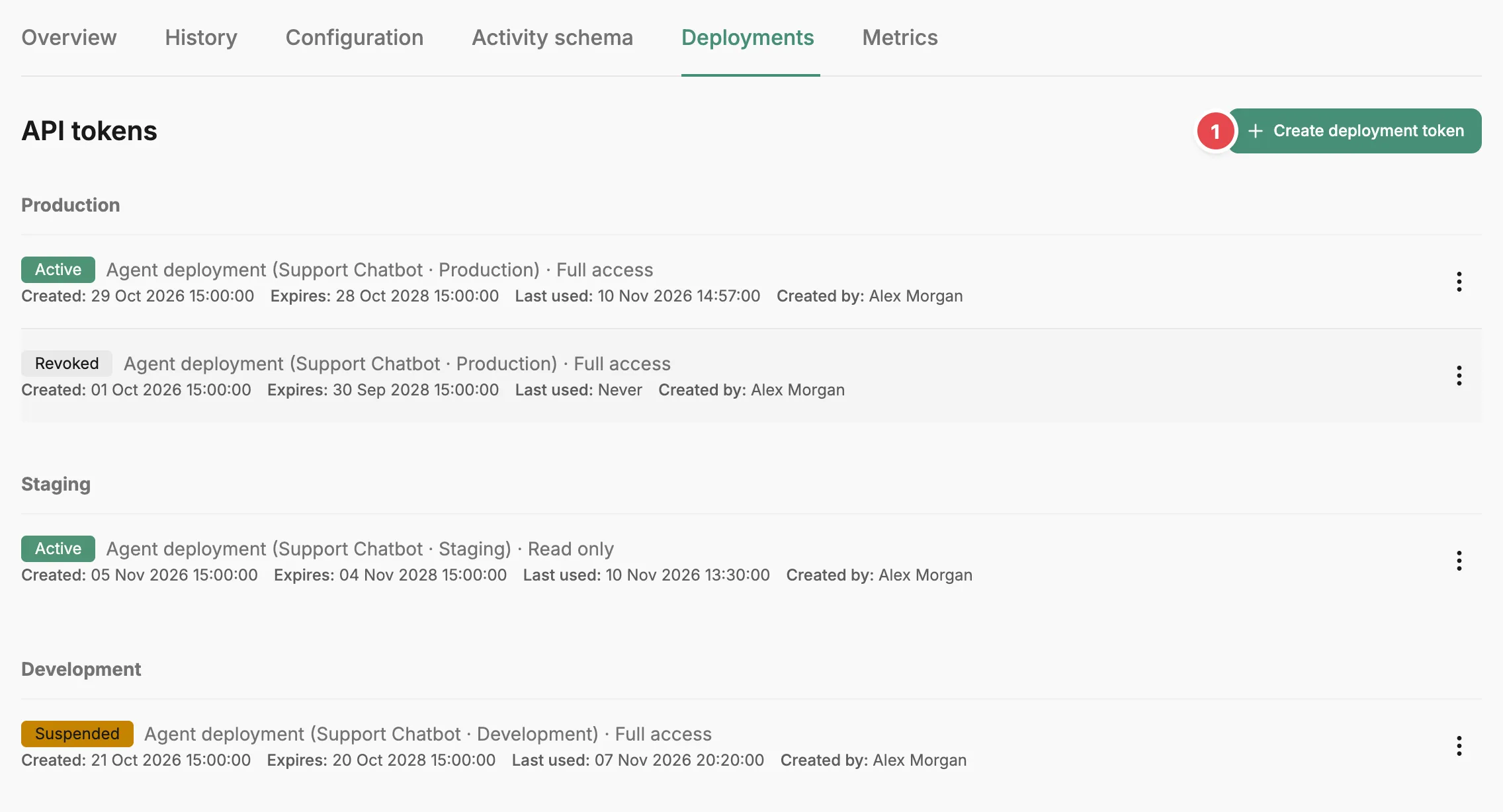
- Create deployment token - issues a token for one environment.
API tokens
Section titled “API tokens”Tokens are grouped into one table per environment, in the order production, staging, testing, development. Environments with no tokens are left out. Each token shows:
- Its status: Active, Suspended, or Revoked.
- Its scope, shown as Agent deployment with the agent and environment it belongs to.
- Its role: Full access or Read only.
- When it was created and expires, when it was last used (or Never), and who created it.
Creating a deployment token
Section titled “Creating a deployment token”Create deployment token opens a dialog with two fields:
- Environment — the environment the token is for. It starts on your highest environment.
- Role — Full access, the default, or Read only. A Read only token can read data but cannot register instances or record spans, so an agent running with one cannot report its runs.
Select Create token. Tokens expire two years after creation. The Deployment token created dialog shows the token value once, with a button to copy it. Copy it before you select I’ve saved the token, because you cannot see the value again. Pass it to your agent as described in Configuration and environment variables.
Token actions
Section titled “Token actions”Each token’s action menu holds the actions its current status allows:
- Update role — on every token. Opens Update deployment token role, where you choose Full access or Read only and select Save.
- Suspend — on an active token, after you confirm. Calls made with the token fail until you activate it again.
- Activate — on a suspended token. The token works again.
- Revoke — on an active or suspended token, after you confirm. The token stops working permanently.
- Delete — on a revoked token, after you confirm. Removes it from the table.
Related
Section titled “Related”- API token — account tokens, deployment tokens, and how they authenticate requests.
- Create a deployment token — the steps for issuing a token and giving it to your agent.
- Rotate an API token — replace a token without taking the agent offline.
- Configuration and environment variables — set
PREFACTOR_API_TOKENso the SDK uses the token. - Account › API tokens tab — account-wide tokens, and every token on the account in one list.