

Create a deployment token
When you deploy an agent to an environment, give it a token that only works for that agent in that environment. If the token leaks, it can’t touch your other agents, and your integration doesn’t need to send the agent ID because the token already carries it.
By the end you’ll have a deployment token copied somewhere safe and listed on the agent’s Deployments tab.
Before you start
Section titled “Before you start”- You have the Full access role on the account. Read-only users still see Create deployment token, but Prefactor refuses the change with an error.
- The agent is registered and runs in your own code. The Deployments tab only appears for those agents. See Register an agent.
- The environment you’re deploying to exists on the Account › Environments tab.
- You have somewhere to store the token, such as your secret manager. Prefactor shows it only once.
Create the token
Section titled “Create the token”-
Go to Agents and select View details on the agent’s card.
The Agent page opens.
-
Select the Deployments tab.
The API tokens list shows the agent’s existing deployment tokens, one table per environment.
-
Select Create deployment token.
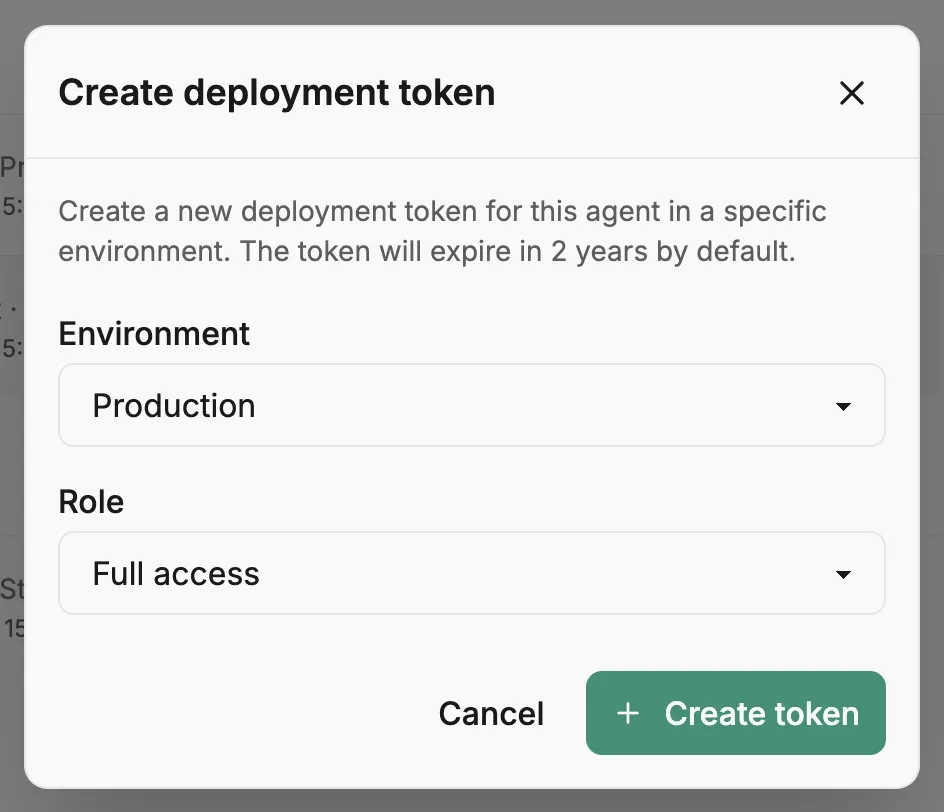
The Create deployment token dialog opens. Tokens created here expire after two years.
-
Choose the Environment the agent runs in.
If the agent has no agent deployment in that environment yet, Prefactor creates one along with the token.
-
Choose a Role.
Pick Full access for a running agent: it records runs and spans, and a Read only token is refused for anything that changes data. Read only suits a dashboard or script that only reads this agent’s data.
-
Select Create token.
The Deployment token created dialog opens with the token under Your deployment token and a Save this token now warning.
-
Select the copy button next to the token and store the value.
Prefactor confirms with “Deployment token copied to clipboard”. Paste the value into your secret manager or deployment configuration now.
-
Select I’ve saved the token.
The dialog closes and you can’t see the value again. The new token is listed under its environment with an Active badge, its scope and role (for example “Agent deployment (Support agent · Production) · Full access”), and Last used: Never.
Use the token
Section titled “Use the token”-
Set the token as
PREFACTOR_API_TOKENin the agent’s environment, or pass it asapiTokenin the SDK config, and leave the agent ID out.
Verify
Section titled “Verify”After the agent runs with the new token, the token’s Last used time on the Deployments tab updates, and the run appears on the agent’s History tab.
If it didn’t work
Section titled “If it didn’t work”- There’s no Deployments tab. The agent isn’t one that runs in your own code. Hosted judges, for example, don’t use deployment tokens.
- Prefactor shows an error when you select Create token. Your role is Read only. Ask a Full access user to create the token.
- You closed the dialog before copying the token. The value can’t be shown again. Revoke the token from its ⋮ menu and create a new one.
- The agent’s requests are refused. Check the token’s badge on the Deployments tab. A Suspended token can be switched back on with Activate; a Revoked one can’t. If the token is Read only, change it with Update role.
- Runs show up in the wrong environment. The token belongs to the environment chosen in step 4. Create a token for the right environment and swap it in.
Other ways to do this
Section titled “Other ways to do this”To create the token from a script, call POST /api/v1/api_token with the agent deployment scope.
Related
Section titled “Related”- API token — token scopes, roles, and lifecycle.
- Agent deployment — what a deployment pins in an environment.
- Agent page › Deployments tab — every column and action on the token list.
- Account › API tokens tab — account-wide tokens, which also list deployment tokens.
- Rotate an API token — replace a token without taking the agent offline.