

Send notifications to Slack
If your team watches a Slack channel, Prefactor can post account events there: a run that failed, an alert that was raised, a token that was revoked. You connect the channel with a Slack incoming webhook and choose which events to send.
By the end, Slack shows as Configured on the Integrations tab, your chosen events post to the channel, and a test message has arrived.
Before you start
Section titled “Before you start”- Your admin user has the Full access role. A Read only user can’t save integration settings.
- You’ve picked one channel. An account has one Slack integration, and every selected event posts to that channel for every agent in the account.
- You’ve created an incoming webhook for that channel by following Slack’s guide to incoming webhooks, and copied its URL. It starts with
https://hooks.slack.com/services/. Treat it as a secret: anyone who has it can post to the channel.
Connect it in Prefactor
Section titled “Connect it in Prefactor”-
Open the user menu at the top right and select Account settings.
The Account page opens on the Details tab.
-
Select the Integrations tab.
Each integration is listed and marked Configured or Not configured.
-
Select Slack.
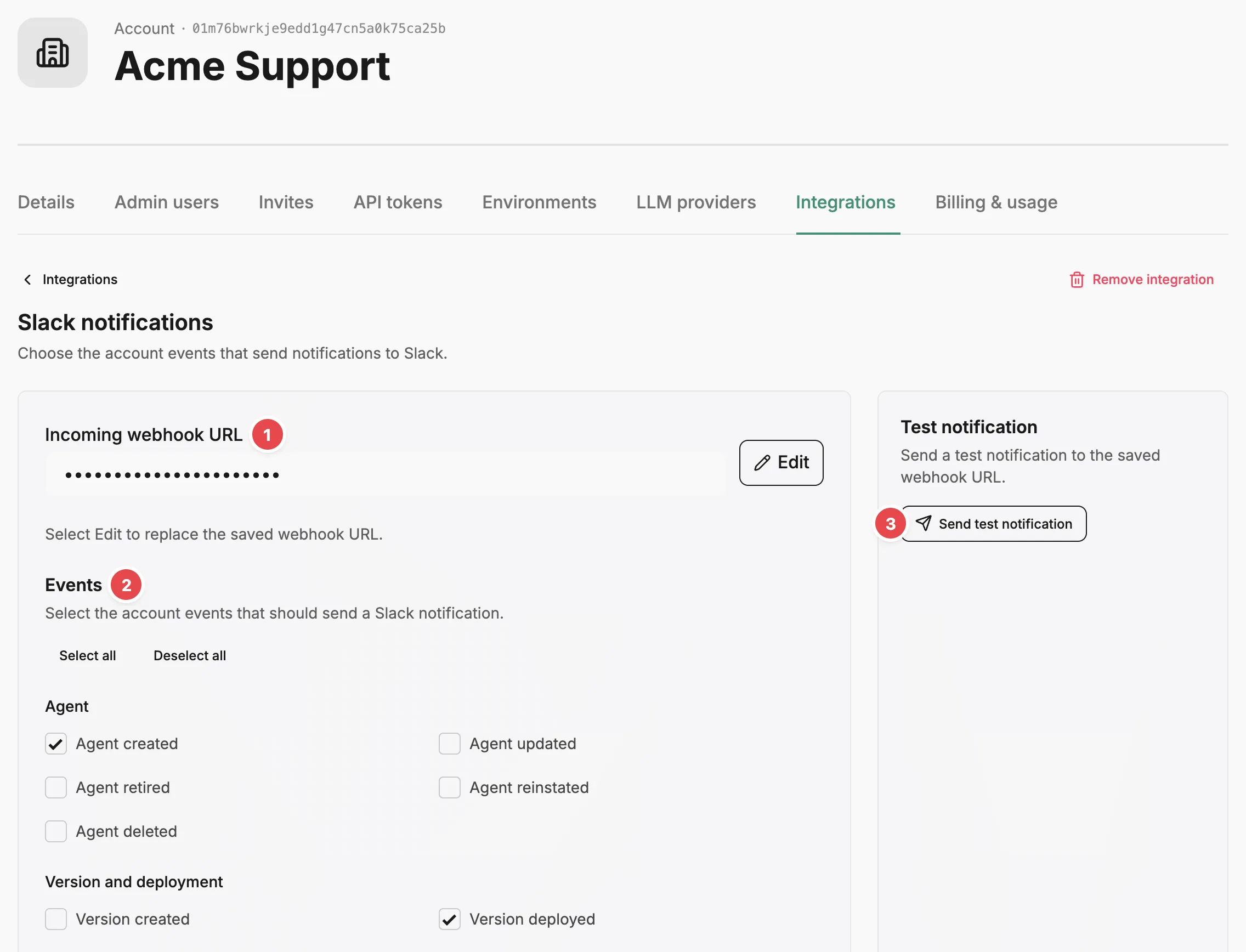
The Slack notifications page opens, with the Incoming webhook URL field 1, the list of Events 2, and a test panel with Send test notification 3.
-
Paste the URL into Incoming webhook URL.
-
Under Events, tick the events you want posted, or select Select all.
Events are grouped by what they’re about: Agent, Version and deployment, Agent instance, User, API token, Environment and team, and Alert. A common starting set is Agent instance failed, Agent instance terminated, and Alert raised. Nothing is sent for an event you leave unticked.
-
Select Save Slack settings.
Prefactor shows Slack integration saved. The webhook field is now masked, with an Edit button beside it, and Prefactor won’t show the URL again.
Test it
Section titled “Test it”-
Under Test notification, select Send test notification.
The panel shows Slack accepted the test notification., and “Test notification from Prefactor.” appears in the channel.
Verify
Section titled “Verify”Go back to the Integrations tab: Slack shows Configured. The next time one of your selected events happens, a message appears in the channel naming who made the change, and most messages end with a View in Prefactor button.
If it didn’t work
Section titled “If it didn’t work”- Saving shows “Webhook URL must be an HTTPS URL on hooks.slack.com”. The URL isn’t a Slack incoming webhook. Copy it again from the webhook’s settings in Slack.
- The test fails with an error from Slack. Slack rejected the webhook, for example because someone deleted it. Create a new webhook, select Edit, paste the new URL, and save.
- The test works but an event never posts. The event isn’t ticked, or it happened on a sample agent Prefactor creates for demos; events about those agents are skipped. Check the event list and save again.
- Notifications stopped after working. Slack started rejecting the webhook, and Prefactor stops sending until you save a working URL. Replace the URL with Edit.
- Messages go to the wrong channel. The webhook belongs to that channel. Create a webhook for the right one and replace the URL with Edit.
To turn notifications off entirely, select Remove integration on the Slack notifications page. It deletes the saved webhook and event choices, and every Slack notification for the account stops.
Other ways to do this
Section titled “Other ways to do this”The API creates the integration with POST /api/v1/account_integration and sends a test with POST /api/v1/account_integration/{account_integration_id}/test.
Related
Section titled “Related”- Account notifications — what a message contains and what to expect from delivery.
- Account › Integrations tab — every event and what triggers it.
- Alert — what the alert events announce.
- Triage alerts — what to do when an alert lands in the channel.