

Invite an admin user
When a teammate needs to see your agents or help manage them, invite them as an admin user of the account. You choose what they can do when you send the invite.
By the end, they’ve accepted the invite and appear on the Admin users tab with the role you picked.
Before you start
Section titled “Before you start”- Your admin user has the Full access role. A Read only user can’t create invites.
- You know the email address your teammate will sign in with. The invite only works for that address.
- Decide on a role. Full access can view and change everything in the account; Read only can view everything but change nothing. You can change it later.
Send the invite
Section titled “Send the invite”-
Open the user menu at the top right and select Account settings.
The Account page opens on the Details tab.
-
Select the Invites tab.
Every invite the account has sent is listed, pending ones first.
-
Select Invite an admin user.
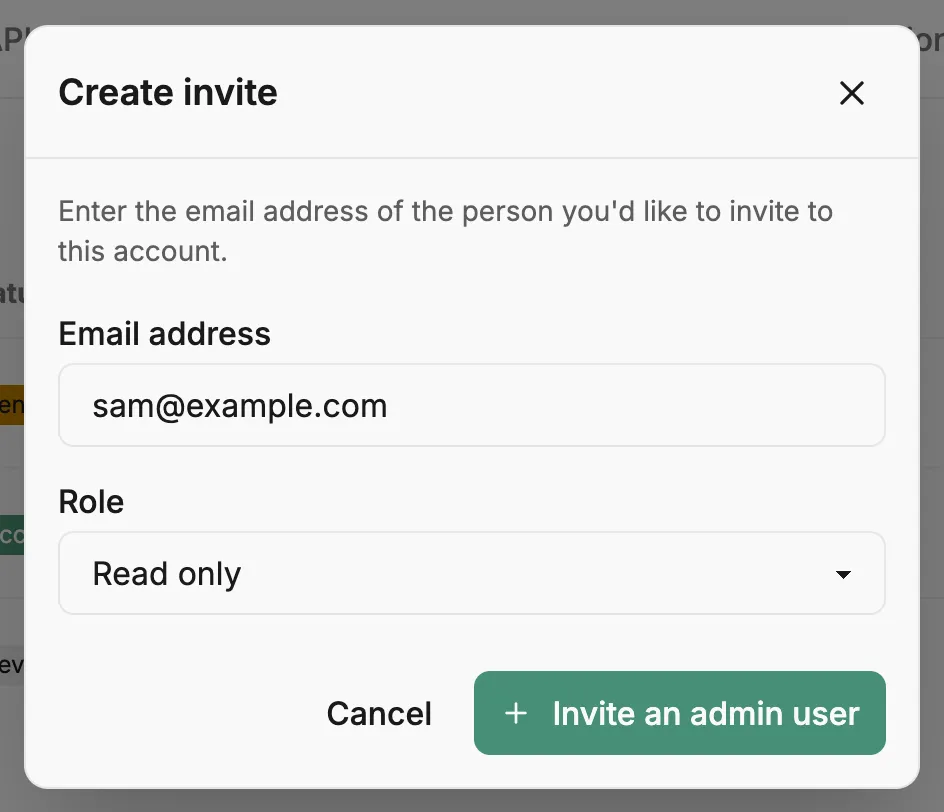
The Create invite dialog opens.
-
Enter their Email address and choose a Role.
-
Select Invite an admin user.
The Invite created dialog opens. Prefactor has queued an invitation email, and the dialog shows Your invite link with a copy button beside it.
-
Copy the link, then select I’ve copied it.
The new invite appears in the table as Pending. We can’t confirm the email was delivered, so send the link to your teammate yourself as well, through your usual chat or email.
What your teammate does
Section titled “What your teammate does”-
They open the link.
If they aren’t signed in, they see the account name and the address the invite was sent to, and select Register or sign in. Once signed in with that address, they select Accept invitation.
Verify
Section titled “Verify”On the Invites tab, the invite’s status changes to Accepted. Your teammate is listed on the Account › Admin users tab with the role you chose.
If it didn’t work
Section titled “If it didn’t work”- They didn’t get the email. Delivery isn’t guaranteed. Select Resend invite email in the invite’s Invite email column, or copy the link from the invite’s action menu with Copy invite URL. After each send the button waits two minutes before you can send again.
- The invite email shows Failed to send. Wait for the countdown, then select Retry invite email, or share the link directly.
- They see “This invitation was sent to a different email address”. They’re signed in with another address. They need to sign out and sign in with the address you invited, or you can invite the address they use.
- They see “This invitation link is invalid or has expired”, or “Invitation revoked”. The link no longer works. Send a new invite.
- You invited the wrong address or role. Open the invite’s action menu and select Revoke, then send a new one. If they’ve already joined, change their role on the Account › Admin users tab.
Other ways to do this
Section titled “Other ways to do this”The API creates an invite with POST /api/v1/admin_user_invite, taking the email address and role. Resend and revoke have their own operations under the same resource.
Related
Section titled “Related”- Account — what an account is and who belongs to it.
- Account › Invites tab — every column and action on the invites table.
- Account › Admin users tab — see who has joined and change their role.
- Account page — what each role allows.