

Register an agent
Your SDK integration reports every run against an agent, so the agent has to exist in Prefactor first. Register it yourself when you want to choose its name, risk profile, team, and owner up front.
By the end you’ll have a new agent with its own Agent page, ready for the token your integration will use.
Before you start
Section titled “Before you start”- You have the Full access role on the account. Read-only users still see Register agent, but Prefactor refuses the change with an error.
- Anything you want to assign already exists: a risk profile to score the agent’s runs, a team from the Teams page, and an owner from the People page. All three are optional, and you can set them later from Edit on the Agent page.
Register the agent
Section titled “Register the agent”-
Go to Agents and select Register agent at the top right.
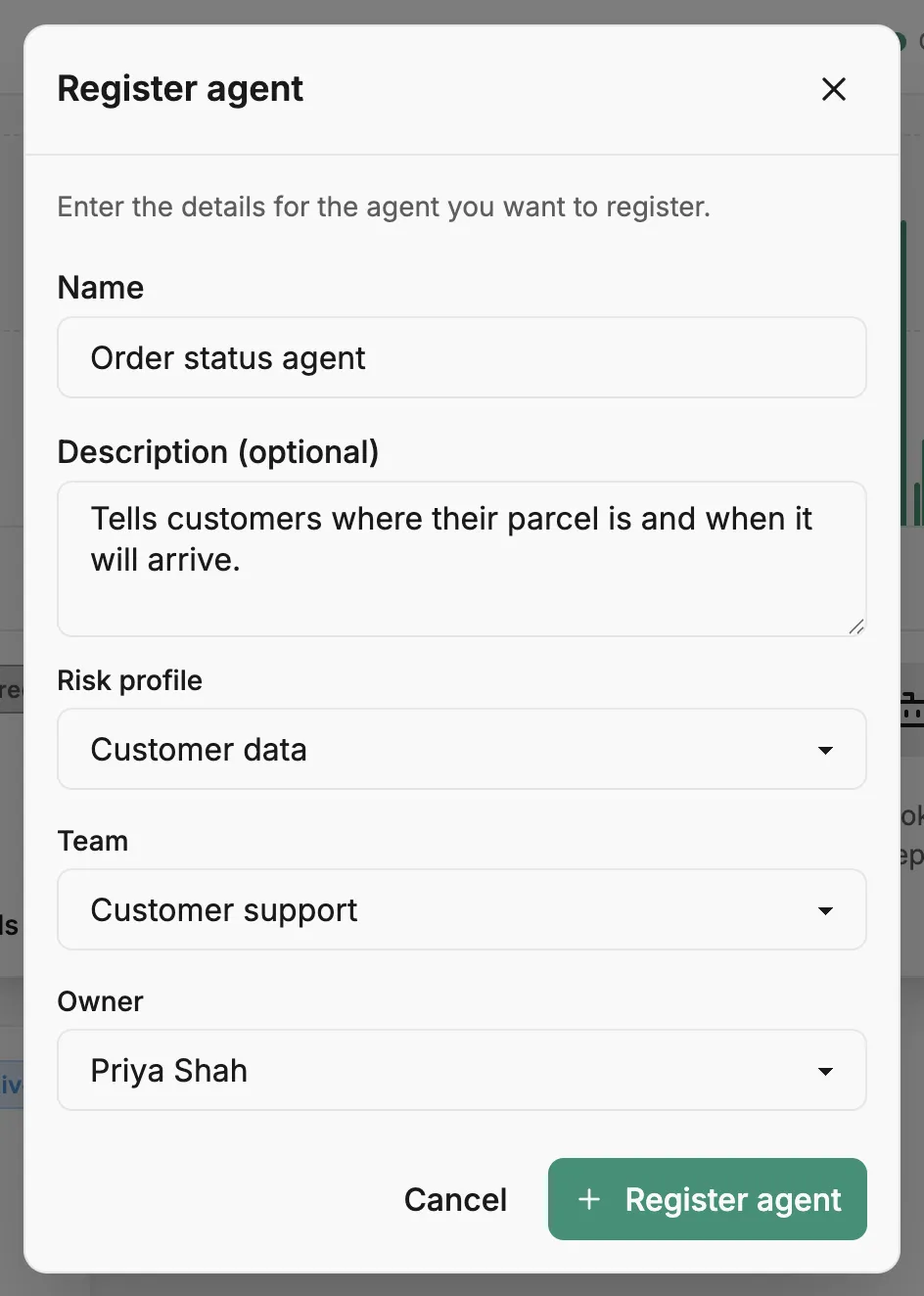
The Register agent dialog opens.
-
Enter a Name.
This is how the agent appears on the Agents page, on Home, and in alerts. Use something a teammate will recognise, such as the product or workflow it serves.
-
Optionally, fill in Description (optional) with what the agent does.
The description shows on the agent’s card and on its Agent page.
-
Choose a Risk profile, Team, and Owner, or leave any of them at None (not assigned).
Without a risk profile, the agent’s runs aren’t scored for risk. If you opened the dialog from a team’s agent list, Team starts on that team.
-
Select Register agent.
Prefactor confirms with “Agent registered successfully” and opens the new Agent page. The agent’s status is Pending until its first run arrives. Until then, the Overview tab shows Nothing set up yet with a Setup agent button, which opens a setup prompt you can paste into your coding tool.
Connect your integration
Section titled “Connect your integration”-
Create a token for the agent on its Deployments tab.
A deployment token belongs to this agent and one environment, so your integration doesn’t need the agent ID. Create a deployment token walks through it.
-
Run your agent with the token set as
PREFACTOR_API_TOKEN.See Configuration and environment variables for the other settings.
Verify
Section titled “Verify”Open the agent’s Agent page again after your agent has run once. Its status has changed from Pending to Active, and the run is listed on the History tab.
If it didn’t work
Section titled “If it didn’t work”- Prefactor shows an error when you select Register agent. Your role is Read only. Ask a Full access user to register the agent or to change your role on the Account › Admin users tab.
- The Risk profile, Team, or Owner list has nothing to choose. None exist in the account yet. Register the agent without it, create the profile, team, or person, then assign it from Edit on the Agent page.
- The status stays Pending after your agent ran. The run was recorded against a different agent. Check that the token your integration uses is listed on this agent’s Deployments tab, or, with an account-wide token, that
PREFACTOR_AGENT_IDis this agent’s ID.
Other ways to do this
Section titled “Other ways to do this”To register an agent from a script or CI, call POST /api/v1/agent.
Related
Section titled “Related”- Agent — what an agent is and how its status changes.
- Agents page — every agent in the account and the Register agent dialog.
- Agent page — what the page shows above the tabs, including Edit.
- Create a deployment token — the next step for a new agent.
- Assign a risk profile — score the agent’s runs if you skipped it here.
- Organise agents by team — group agents and give them owners.