

Teams
A team groups the agents a part of your organisation runs with the people who look after them. You’ll come to Teams to create a team, rename or delete one, or open one to see its agents and people. Teams also shape the rest of the app: the Agents and Judges lists in the sidebar group their items by team.
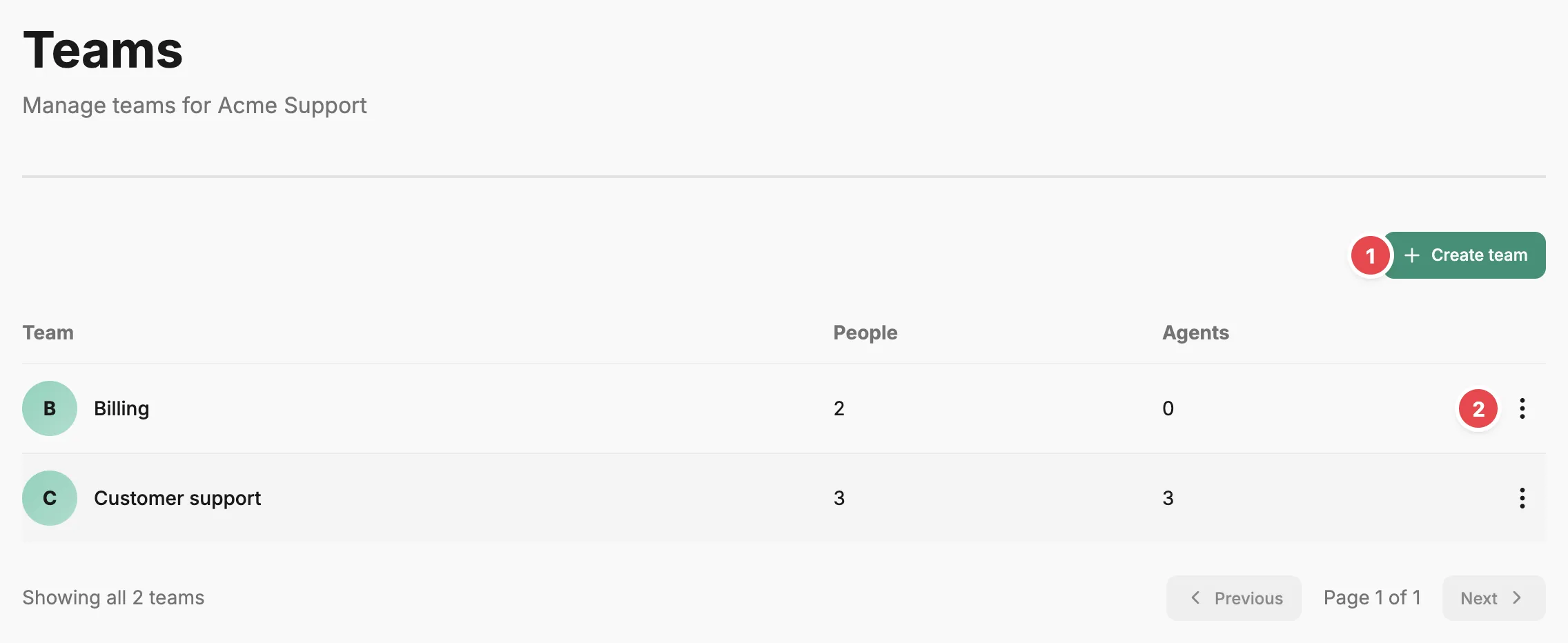
- Create team - adds a team by name.
- Action menu - renames or deletes the team.
Team list
Section titled “Team list”The table lists each team with the number of People and Agents in it. Select a team’s name to open its team page. Create team opens a dialog that asks only for a Team name. Each row’s action menu holds Edit, to rename the team, and Delete, which asks you to confirm and can’t be undone.
Teams don’t have a membership editor of their own. You put a person in a team from the Teams checkboxes when you create or edit them on the People page, and you choose an agent’s or judge’s team when you register it or from Edit on its Agent page or Judge page.
Team page
Section titled “Team page”A team’s page shows its people and agent counts, with Edit and an action menu holding Delete at the top right. Deleting the team returns you to the Teams page.
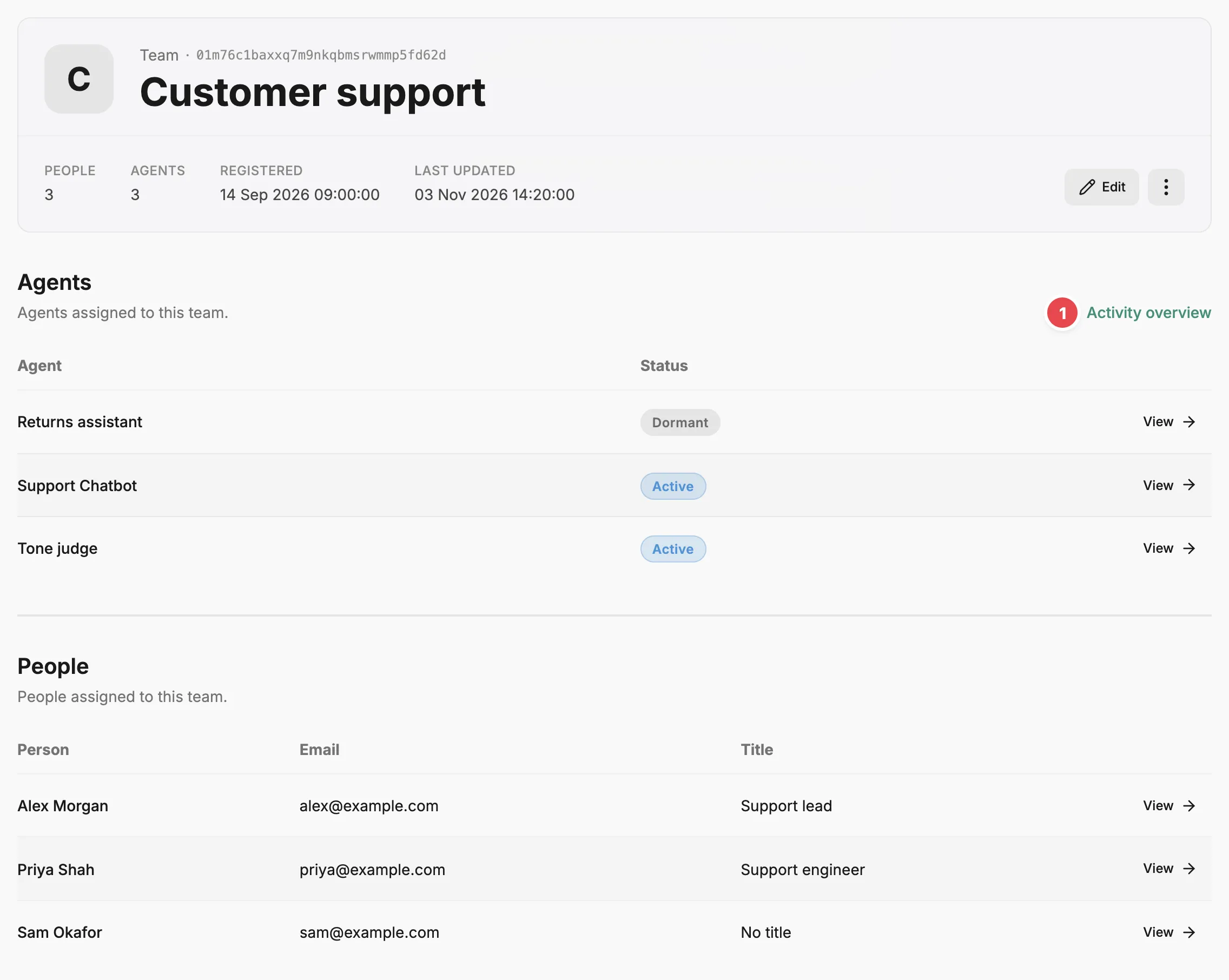
- Activity overview - opens the Agents page filtered to this team.
Agents lists the team’s agents with their status, and View opens each one’s Agent page. Once the team has agents, Activity overview opens the Agents page filtered to the team.
People lists the people in the team with their email and title, and View opens each one’s person page.
Related
Section titled “Related”- People — add people and assign them to teams.
- Agents page — the full agent list, which can be filtered to one team.
- Organise agents by team — set up teams and assign agents and owners, step by step.
- Agent — what an agent is, including its team and owner.