

Organise agents by team and owner
Once an account has more than a handful of agents, it helps to know which team runs each one and who to ask about it. Teams group agents in the sidebar and on their own page; an owner names the person responsible for an agent.
By the end, the agent belongs to a team, has a named owner, and shows both on its Agent page.
Before you start
Section titled “Before you start”- Your admin user has the Full access role. A Read only user can’t create teams or people, or change an agent.
- You know the owner’s name and email address. Owners are records on the People page, not sign-ins: a person doesn’t need an admin user to own an agent, and an admin user isn’t automatically a person.
Create the team
Section titled “Create the team”-
Go to Organisation › Teams.
The Teams page lists each team with how many people and agents it has.
-
Select Create team.
The Create team dialog opens.
-
Enter a Team name and select Create team.
Prefactor shows Team created successfully and the team appears in the list.
Record the owner
Section titled “Record the owner”-
Go to Organisation › People and select Create person.
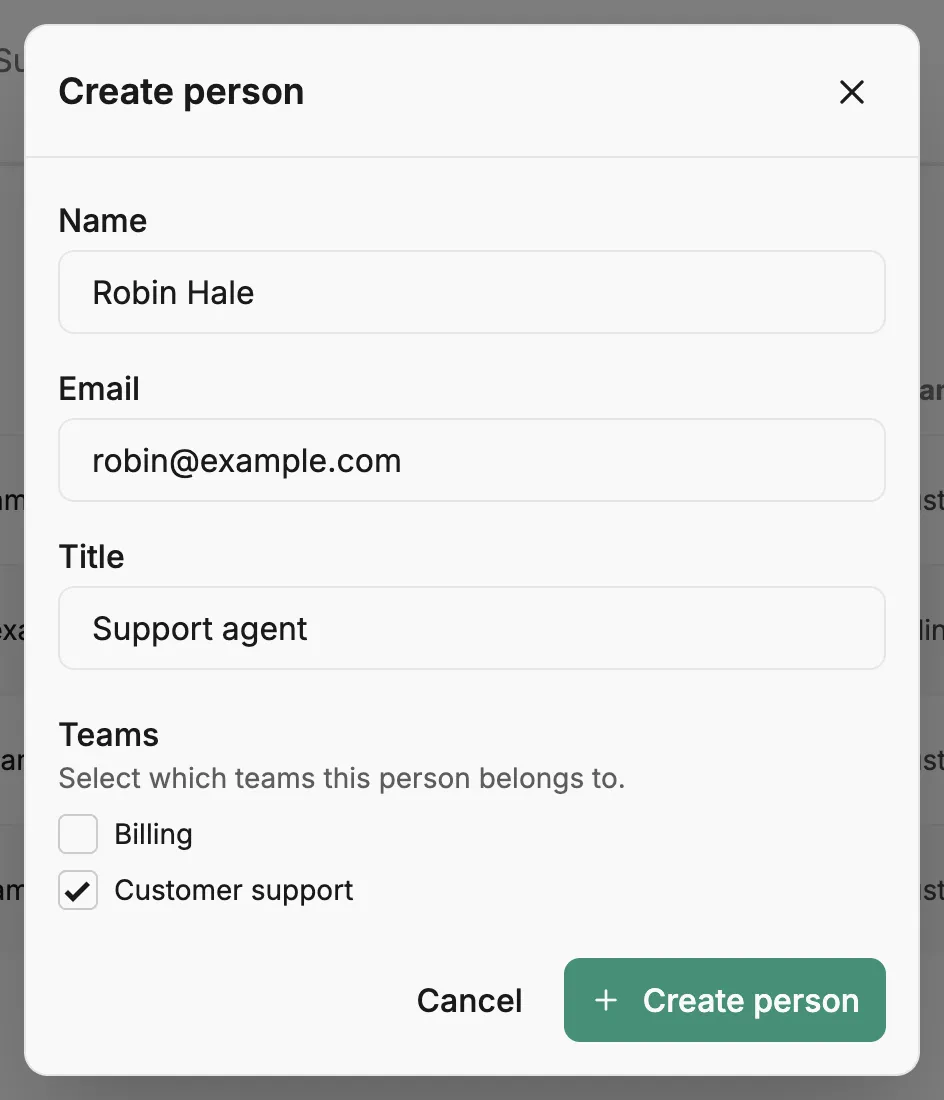
The Create person dialog opens.
-
Enter the person’s Name and Email, and optionally a Title. Under Teams, tick the team you created. Then select Create person.
Prefactor shows Person created successfully. The person’s row lists the team under Teams.
Assign the agent
Section titled “Assign the agent”-
Go to Agents and select View details on the agent’s card.
The Agent page opens.
-
Select Edit on the card at the top.
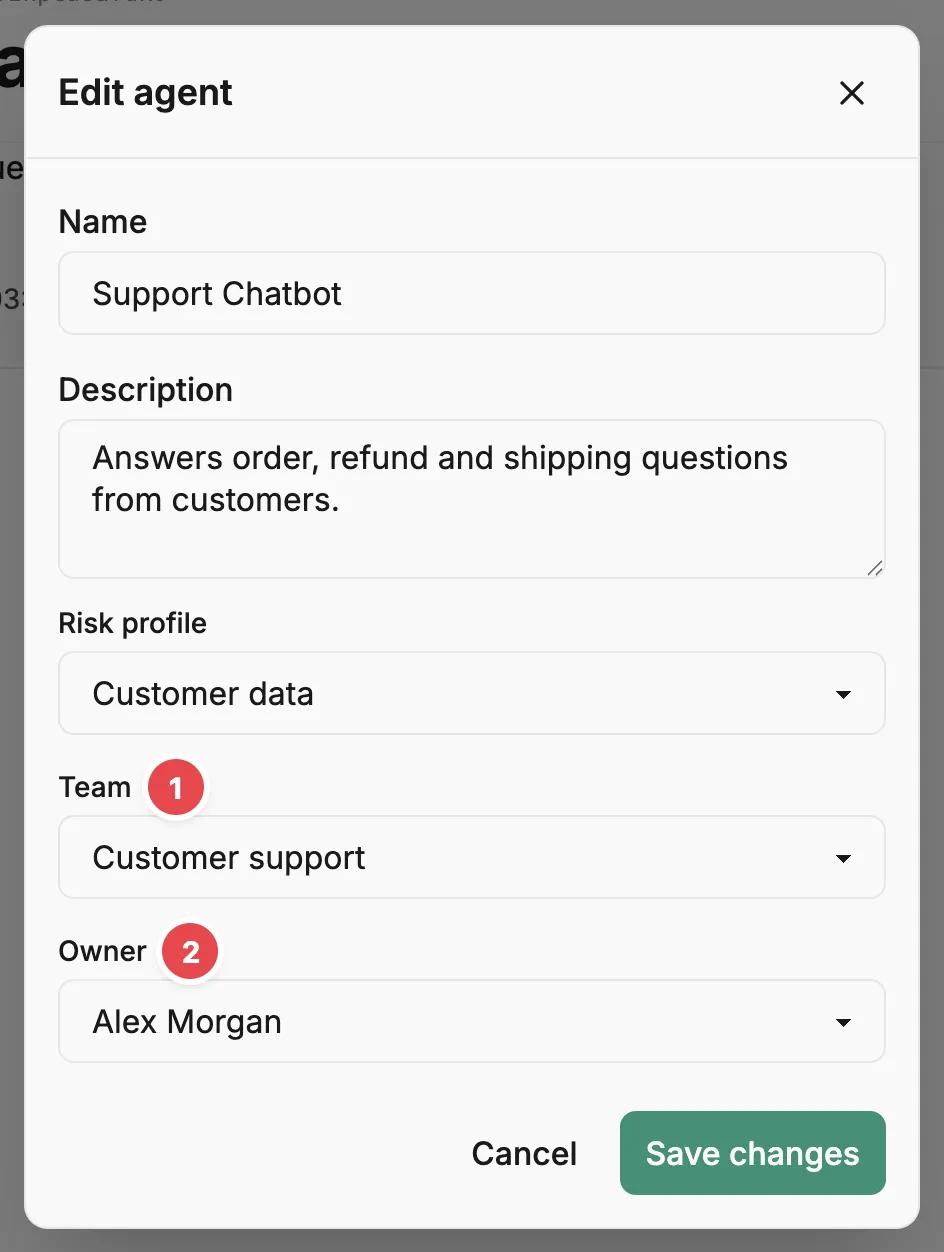
The Edit agent dialog opens. Below the name and description are the agent’s Team 1 and Owner 2.
-
Choose the team from Team and the person from Owner, then select Save changes.
Prefactor shows Agent updated successfully. The card at the top now shows Team and Owner, each linked to its page.
When you register a new agent, the Register agent dialog on the Agents page has the same Team and Owner fields, so you can set them from the start.
Verify
Section titled “Verify”- In the sidebar under Agents, the agent is listed beneath the team’s name.
- The team’s page, opened from the Teams page, lists the agent under Agents and the owner under People.
- The owner’s page, opened from the People page, lists the agent with the role Owner.
If it didn’t work
Section titled “If it didn’t work”- The person you want isn’t in the Owner list. The list shows people from the People page, not admin users. Create a person for them first.
- The agent still appears outside any team in the sidebar. The edit wasn’t saved, or Team is set to None (not assigned). Open Edit again and check.
- The agent belongs to the wrong team. An agent has one team at a time. Choose the right one in Edit and save; it moves.
- Saving fails with a permission error. Your admin user is Read only. Ask someone with Full access to change your role on the Account › Admin users tab.
Other ways to do this
Section titled “Other ways to do this”The API creates teams with POST /api/v1/team and people with POST /api/v1/person. Set an agent’s team_id and owner_person_id with PUT /api/v1/agent/{agent_id}.
Related
Section titled “Related”- Agent — what an agent is.
- Teams page — every team, and each team’s people and agents.
- People page — the people who own your agents, and the teams they belong to.
- Agent page — the card at the top and the Edit dialog.
- Invite an admin user — give someone a sign-in to the account.