

Agent page
The Agent page gathers everything Prefactor knows about one agent: its recent activity, how risky its runs have been, which versions run where, and every run it has produced. Open it from a card on the Agents page or from the sidebar.
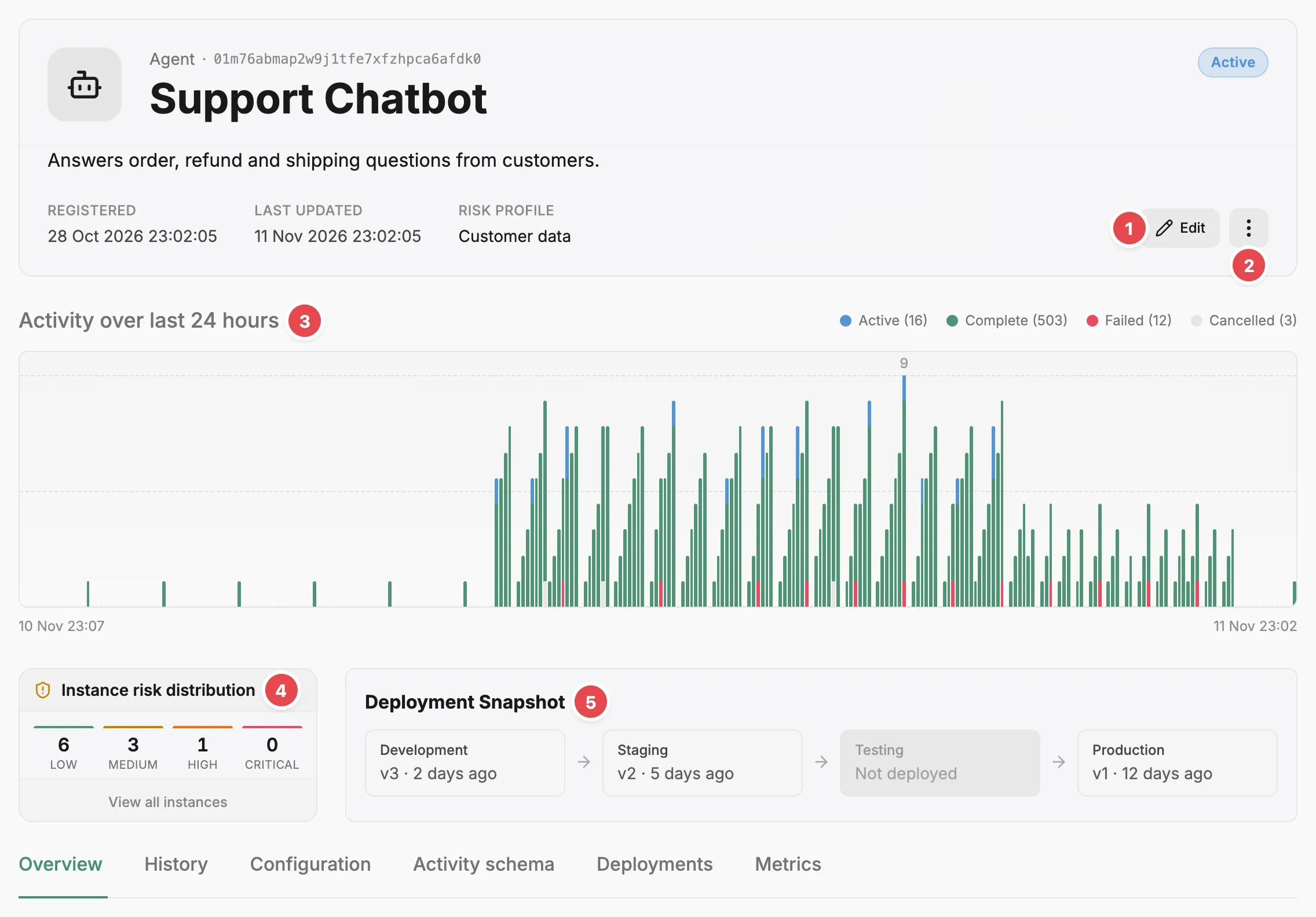
- Edit - changes the agent’s details and assignments.
- Action menu - retires, reinstates, or deletes the agent.
- Activity chart - the agent’s spans by status over the selected range.
- Instance risk distribution - how many runs fell into each risk level.
- Deployment Snapshot - which version is deployed in each environment.
Header
Section titled “Header”The header shows the agent’s ID above its name, its status (Pending, Active, Dormant, or Retired), its description, and when it was registered and last updated. It always shows the agent’s risk profile, or None assigned, and shows the team and owner once they’re set. Each links to its own page. A judge’s header has no risk profile. Edit changes the name, description, risk profile, team, and owner. The action menu holds the rest, and each item appears only when it applies:
- Setup agent — for a remote agent, opens the getting started page to continue connecting it.
- Retire agent and Reinstate agent — move the agent to Retired and back.
- Delete agent — permanently removes the agent after you confirm.
What you can do here
Section titled “What you can do here”- See span activity and the risk level of the agent’s runs at a glance.
- Check which version is deployed in each environment, and promote a hosted agent’s version.
- Edit the agent’s details, assignments, and lifecycle state.
- Open the agent’s runs, versions, schema, tokens, and metrics from the tabs.
Activity chart
Section titled “Activity chart”The Activity over chart counts the agent’s spans by status: Active, Complete, Failed, and Cancelled. It follows the time range picker in the top bar (24h, 7d, or 30d), and its heading names the range. The picker shows only on the Overview and Metrics tabs.
Instance risk distribution
Section titled “Instance risk distribution”When the agent has a risk profile, Instance risk distribution shows how many of its runs fell into each risk level (Low, Medium, High, and Critical) across every run the agent has produced, not just the selected time range. View all instances opens the History tab.
Deployment snapshot
Section titled “Deployment snapshot”The Deployment Snapshot shows which version of the agent is deployed in each environment. Environments are grouped into columns by purpose, from Development through Testing and Staging to Production. Each environment shows its deployed version, which links to that version on the Configuration tab, or ”- not deployed -”. A purpose with no environments in your account still gets a column, marked not deployed.
For a hosted agent, Promote appears under an environment’s version when the next environment up has an older version or none. It asks you to confirm, then deploys the version to that next environment. See agent deployment for how deployments pin a version to an environment.
The tabs below the strip are, in order:
- Overview tab — an environment filter, the judges and knowledgebases attached to the agent, its risk summary, instance counts, and recent spans.
- History tab — every run of the agent, newest first.
- Configuration tab — the agent’s versions and where each is deployed.
- Activity schema tab — schema versions and span validation. Judges do not have this tab.
- Deployments tab — deployment tokens for this agent. Only remote agents have this tab.
- Metrics tab — run health over the selected time range.
Related
Section titled “Related”- Agent — what an agent is, how versions are created, and the agent lifecycle.
- Agent deployment — how deployments pin a version to an environment.
- Agents page — the account-wide list of agents.
- Judge page — the same page for a judge.