

Details tab
The Details tab holds the basic facts about the account. You’ll come here to rename the account, update the organisation it belongs to, or copy the account ID for a support request.
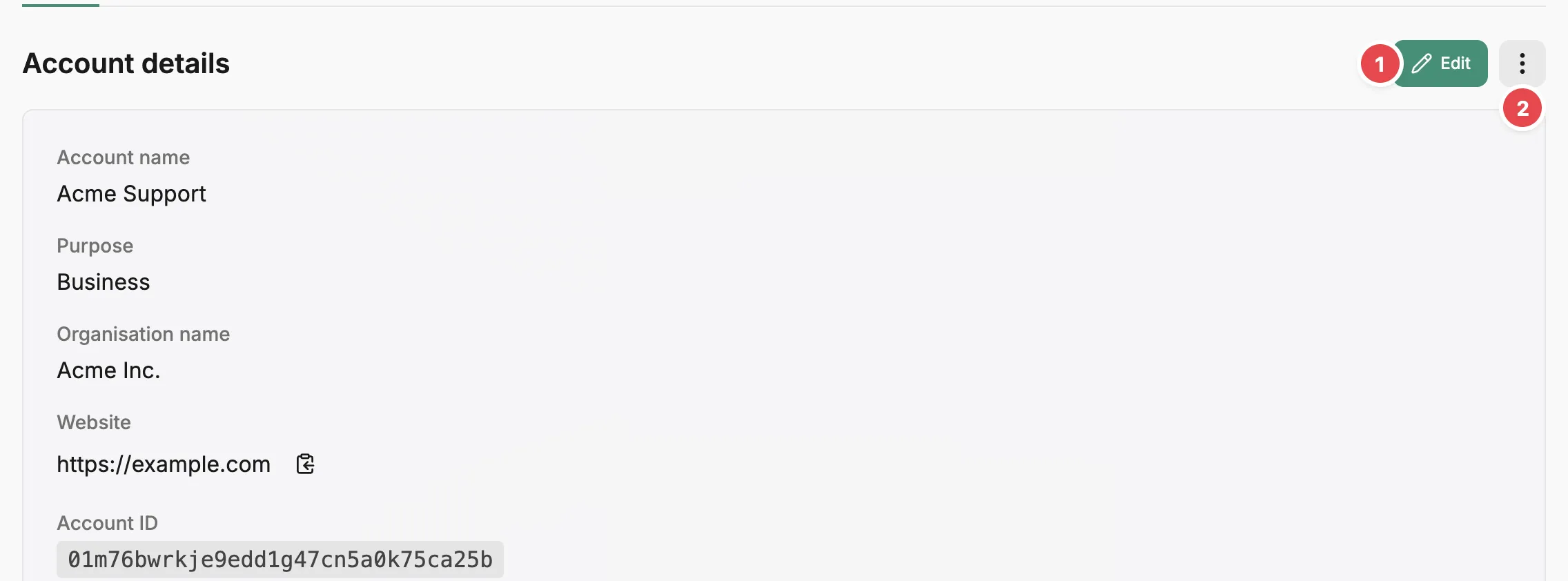
- Edit - changes the account name, purpose, organisation and website.
- Action menu - holds Delete account.
Under Account details you see the account name, its purpose (Business, Personal, Nonprofit, Education, or Government), the organisation name, the website, and the account ID. Personal accounts have no organisation name, so that row is hidden for them. The copy button beside the website copies the address. The account ID is generated by Prefactor and can’t be changed.
Edit opens the Edit account form, with Account name, Purpose, Organisation name, and Website. Organisation name is required unless the purpose is Personal, and the field disappears when you choose Personal. Select Save changes to apply.
Deleting the account
Section titled “Deleting the account”Delete account is in the action menu beside Edit. It opens a confirmation that lists what goes with the account: all environments, all agents and their configurations, all agent instances and activity records, all admin users and invites, and all account settings. To confirm, type DELETE followed by the account name exactly as shown (for example, DELETE Acme), then select Delete account. The button stays disabled until the text matches.
Once the account is deleted, Prefactor takes you to the account switcher so you can choose another account.
Related
Section titled “Related”- Account — what an account is and how it scopes agents, environments, and tokens.
- Account page — how the Account settings tabs fit together, and what each role allows.