

Knowledgebase page
A knowledgebase’s page is where you write its documents and choose which agents and judges can read them. You’ll come here to add or update reference material, or to link a knowledgebase to an agent that needs it.
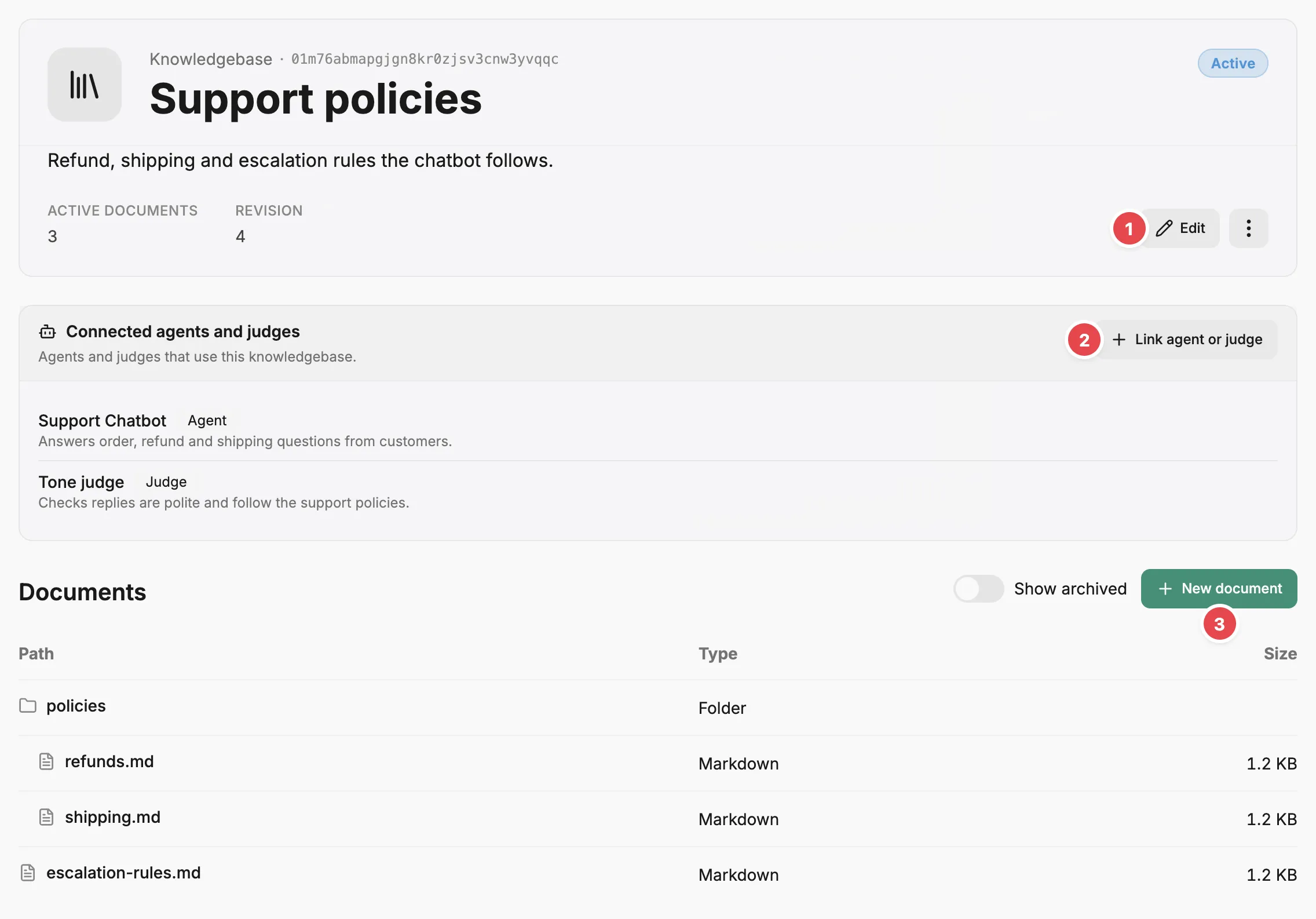
- Edit - changes the knowledgebase’s name and description.
- Link agent or judge - lets an agent or judge read the knowledgebase.
- New document - adds a document at a path you choose.
What you can do here
Section titled “What you can do here”- Link an agent or judge so it can read the knowledgebase, or unlink one.
- Create documents and organise them into folders by path.
- Open a document to read, edit, rename, archive, or delete it.
- Archive or delete the whole knowledgebase.
Header
Section titled “Header”The header shows the number of active documents and the current revision. Every document change creates a new revision, and agents always read the current one. Edit changes the name and description, and the action menu beside it holds Archive and Delete.
Connected agents and judges
Section titled “Connected agents and judges”This section lists the agents and judges linked to the knowledgebase. Each row shows whether it’s an agent or a judge, and its name opens its Agent page or Judge page.
Link agent or judge opens a dialog where you choose one from the Agent or judge list and select Link. The button is unavailable when every agent and judge is already linked, or when the account has none.
Unlink is in each row’s action menu, and asks you to confirm. Once unlinked, the agent or judge can no longer read the knowledgebase, including in a run that’s already in progress.
Documents
Section titled “Documents”Documents are listed as a tree built from their paths: a path like policies/refunds.md puts refunds.md inside a policies folder. Each row shows the document’s type and size. Select a document to open it. Archived documents are hidden until you turn on Show archived, and show an Archived badge when they’re visible.
New document opens a dialog with three fields:
- Path — the document’s full path, including any folders. Another document can’t use the same path.
- Type — Markdown, Plain text, JSON, YAML, or CSV.
- Content — the document text. For Markdown, switch between Text and Preview to check how it renders.
Create document saves it and opens its document page.
Document page
Section titled “Document page”A document’s page shows its type, revision, and size, and its content below. A Markdown document opens rendered. Turn off Preview to see its source.
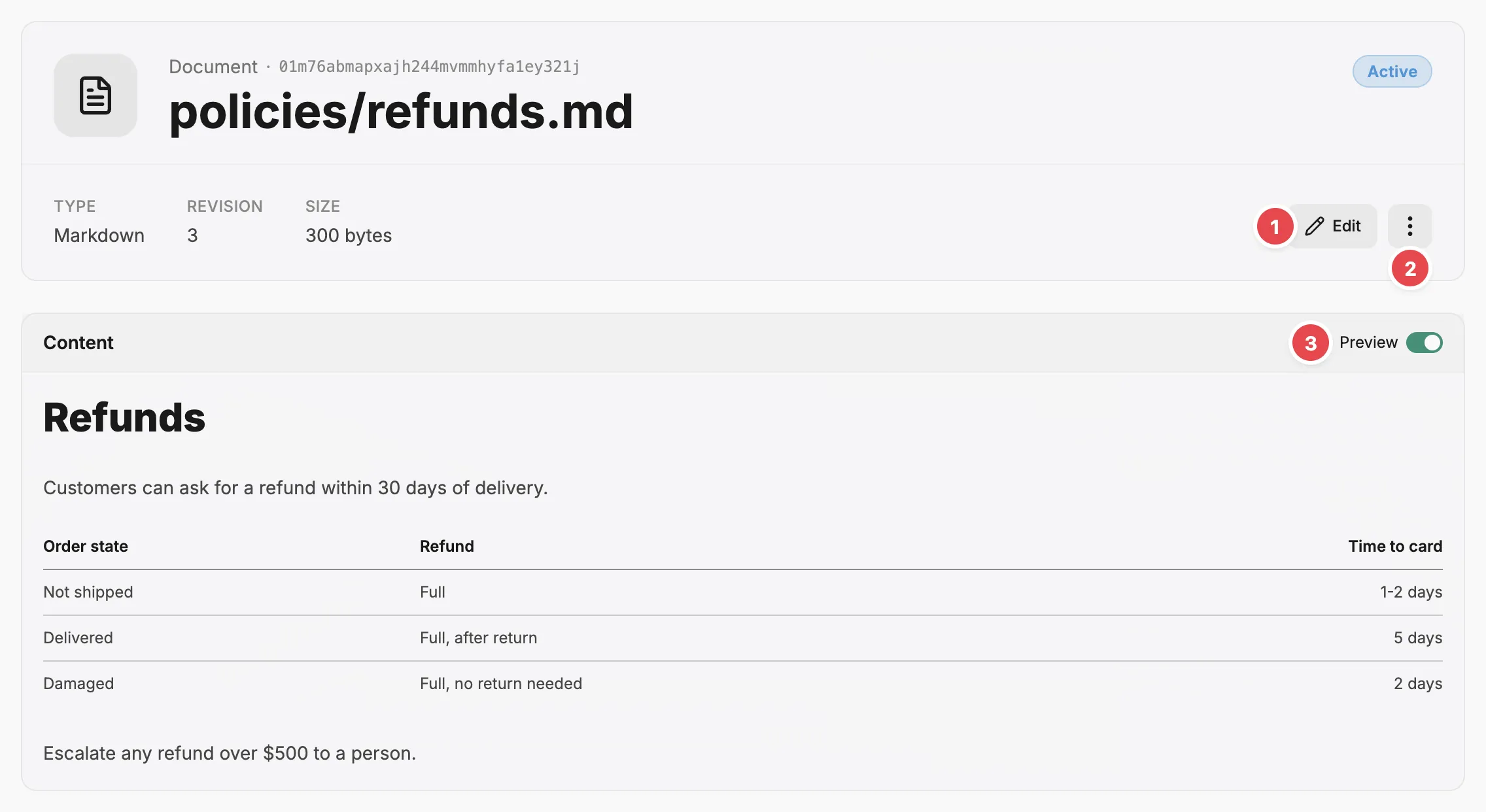
- Edit - opens the editor for the type and content.
- Action menu - renames, archives, or deletes the document.
- Preview - switches a Markdown document between rendered and source.
Edit opens the editor, where you can change the type and content and then Save. If someone else saves the document while you’re editing, the editor tells you and keeps your edits. Load newer revision replaces your edits with the newer version, after asking you to confirm; copy anything you want to keep first.
The action menu holds:
- Rename — enter the full new path. Another document can’t already use it, and it can’t be a folder that holds other documents.
- Archive — removes the document from the current revision, so agents stop reading it, and makes it read-only. Unarchive brings it back.
- Delete — asks you to confirm, then removes the document permanently.
Archiving and deleting the knowledgebase
Section titled “Archiving and deleting the knowledgebase”Archive in the action menu makes the knowledgebase read-only: you can’t edit its details or documents, create documents, or link agents and judges until you select Unarchive. You can still unlink agents and judges while it’s archived. Linked agents and judges stop reading an archived knowledgebase.
Delete asks you to confirm, then returns you to the Knowledgebases page.
Related
Section titled “Related”- Knowledgebase — what a knowledgebase is, how agents read it, and how revisions work.
- Knowledgebases page — every knowledgebase in the account.
- Give agents reference documents — create a knowledgebase and link it, step by step.
- Judge page — configure the judges that can read a knowledgebase.