

Invites tab
Invites are how new people join the account. You’ll come here to invite someone, chase up an invite that hasn’t been accepted, or cancel one you no longer want.
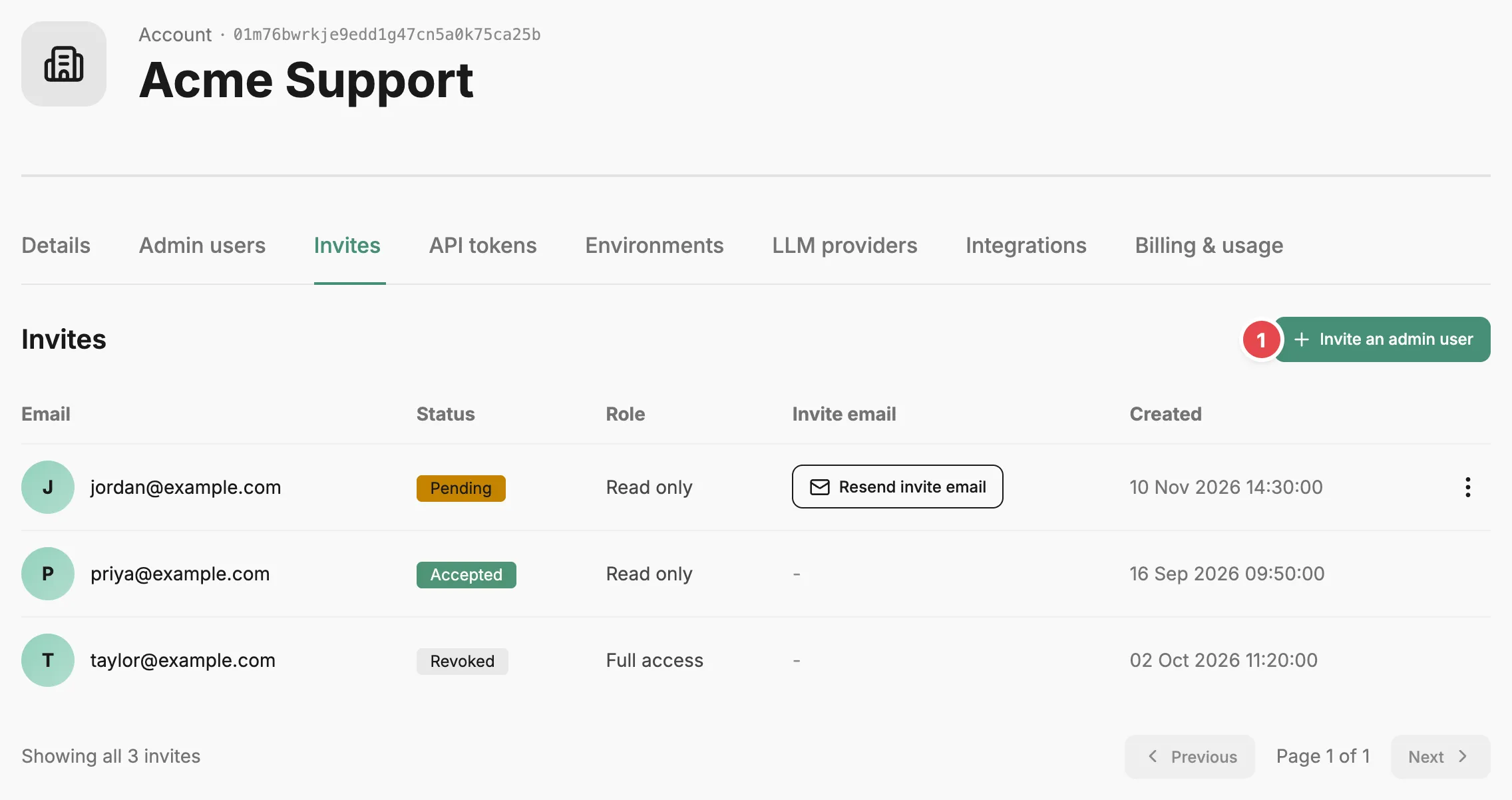
- Invite an admin user - invites someone by email with a role.
Inviting someone
Section titled “Inviting someone”Select Invite an admin user to open the Create invite form. Enter their email address, choose a role, and select Invite an admin user. Full access lets them view and change everything in the account; Read only lets them view everything but not change it. The role carries over when they join, and you can change it later on the Admin users tab.
Prefactor then shows the invite link. We queue an invitation email at the same time, but delivery isn’t guaranteed, so copy the link and send it yourself if the person might miss the email. You can copy it again later from the invite’s row. Select I’ve copied it to close.
The invites table
Section titled “The invites table”Every invite the account has sent is listed, with pending invites first and the newest first within each status. Each row shows the email address, the status (Pending, Accepted, or Revoked), the role, the invite email controls, and when the invite was created. When someone accepts, their invite moves to Accepted and they appear on the Admin users tab.
The Invite email column applies to pending invites. Its button reads Send invite email if no email has gone out yet, Resend invite email if one has, and Retry invite email after a failed attempt. After each send the button is disabled for two minutes, with a countdown underneath. While it waits, the button shows how the last attempt went: Queued, Email accepted (our email service accepted the request, which doesn’t confirm delivery), or Failed to send.
The action menu on a pending invite has Copy invite URL and Revoke. Revoke asks you to confirm, then stops the link from working. A revoked invite stays in the table as Revoked; to let the person in, send a new invite.
Related
Section titled “Related”- Account page — how the Account settings tabs fit together, and what each role allows.
- Account › Admin users tab — the people who have joined, and their roles.
- Invite an admin user — the steps from invite to first sign-in.